
Get started
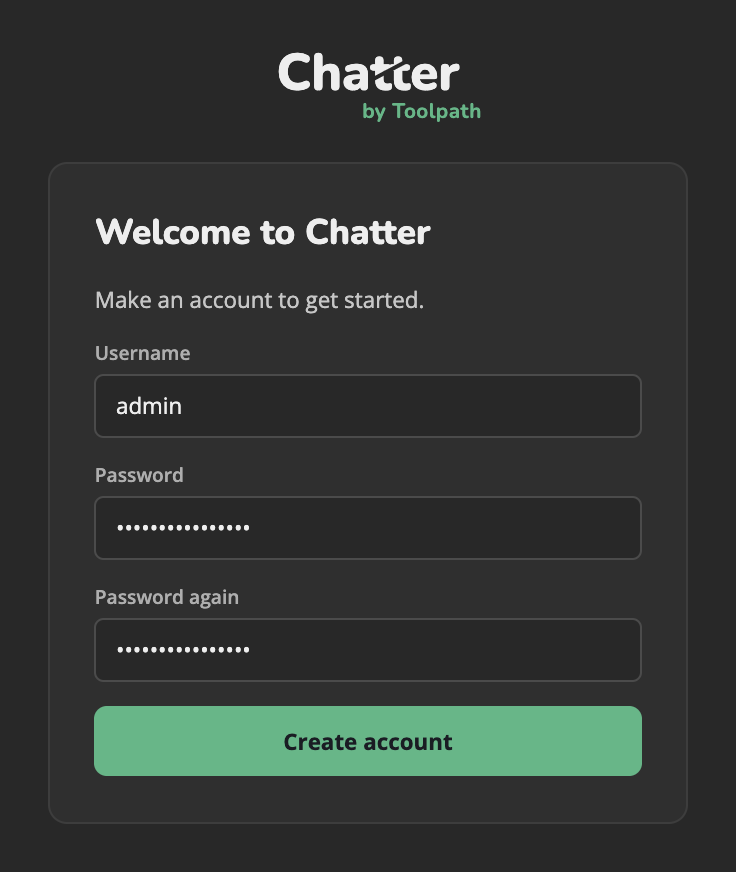
1. Create the Admin login
Open Chatter in a browser. On the first visit, Chatter asks for a username and a password. This first account is an Admin.
Warning:
Do this at once. Until then, anyone who opens Chatter can make the Admin.
2. Add your machines
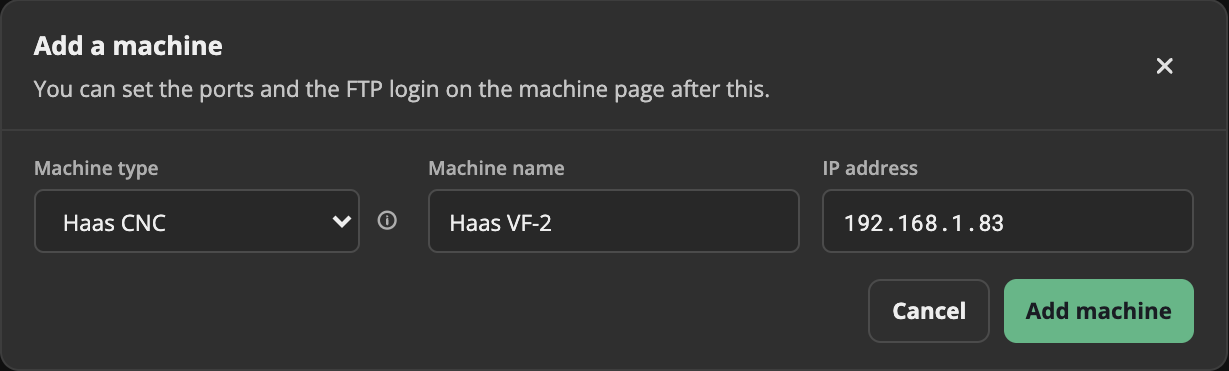
On the first start, Find machines opens by itself. It scans your network for machines. You can also click Add machine on the Machines page, and type the machine type, a name and the IP address.
If Find machines finds nothing:
It guesses the address range from the address in your browser. If you open Chatter with a name, such as chatter.local or localhost, type the range, for example 192.168.1.
For FANUC machines, see FANUC machines.
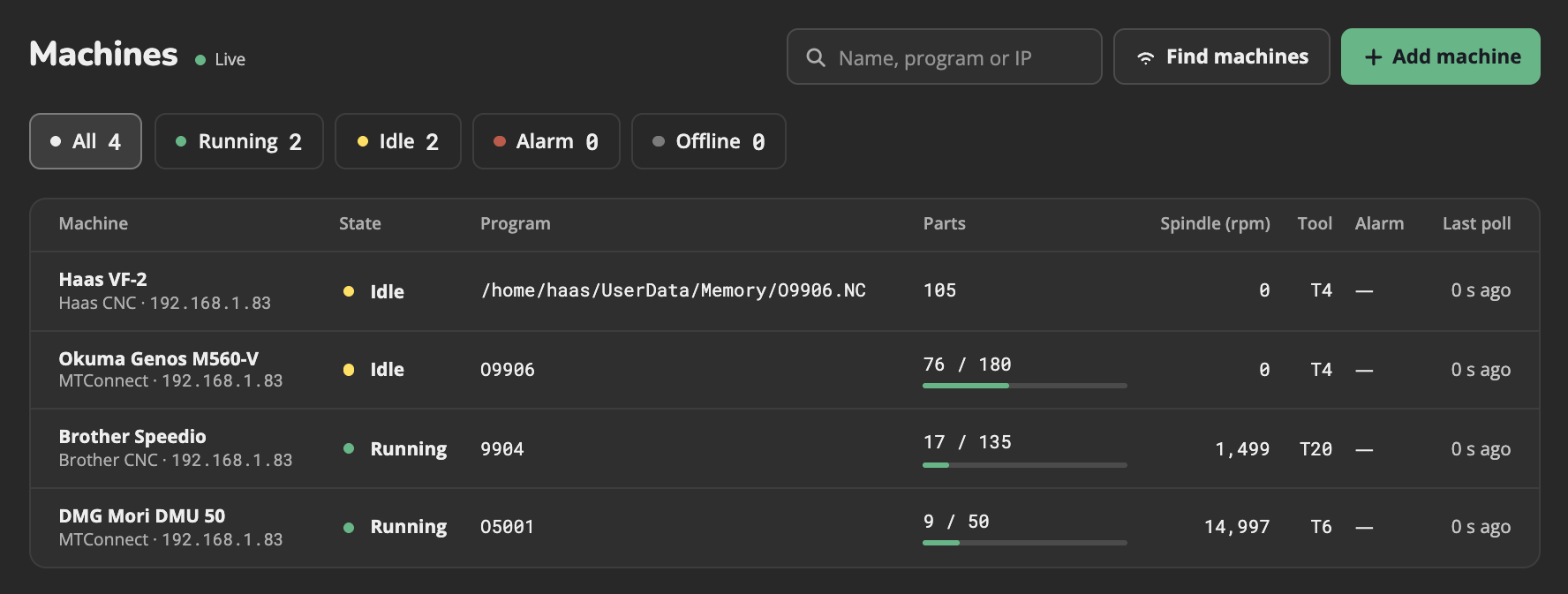
When you add a machine, it shows on the Machines page. It shows Connecting until Chatter reaches it, for at most 30 seconds. If Chatter cannot reach it in that time, it shows Offline.
3. Set up FTP on each machine
Chatter uses FTP to show, send and download the program files on a machine. Do these steps for each machine:
- On the Machines page, click the machine.
- Click the Machine settings tab.
- Under FTP login, type the FTP port, username and password that the machine uses. Most machines use port
21. - Click Save changes.
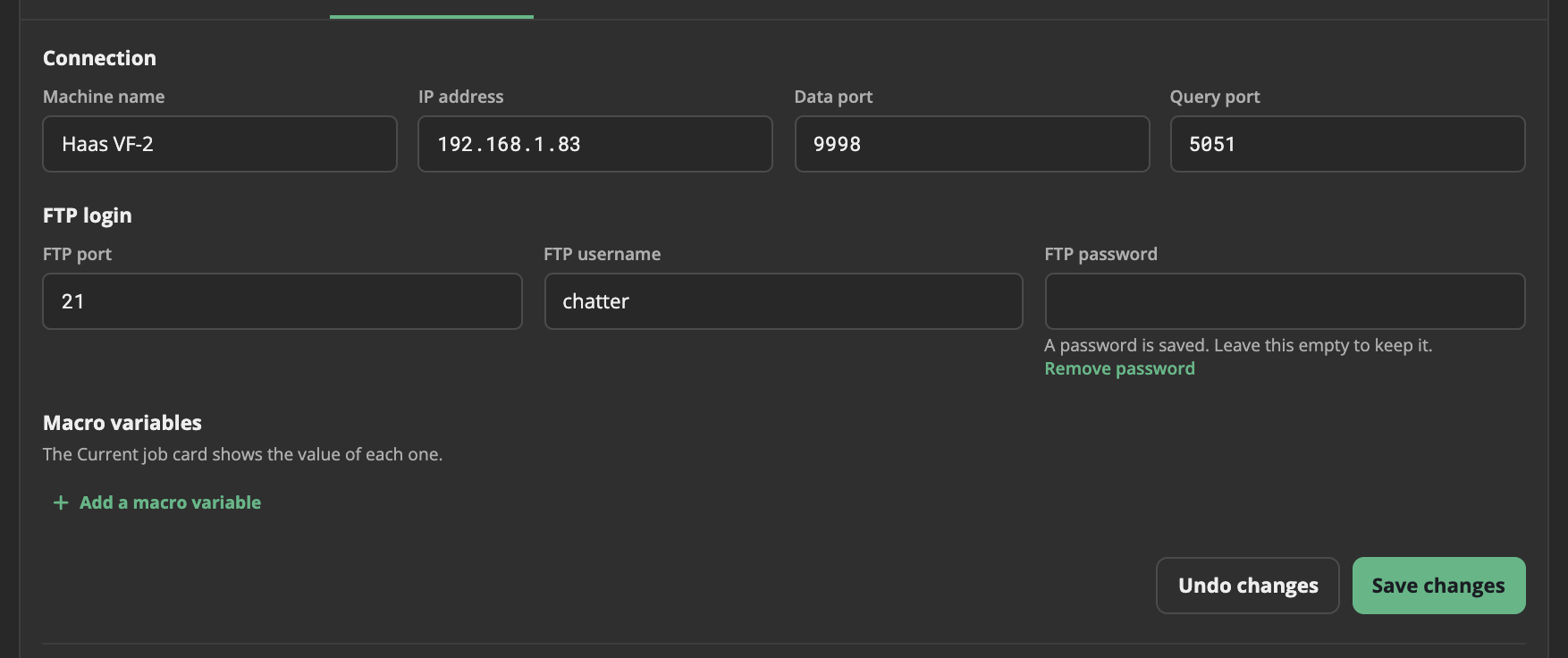
Chatter never shows a saved password again. To keep it, leave the password box empty.
4. Add users and give them roles
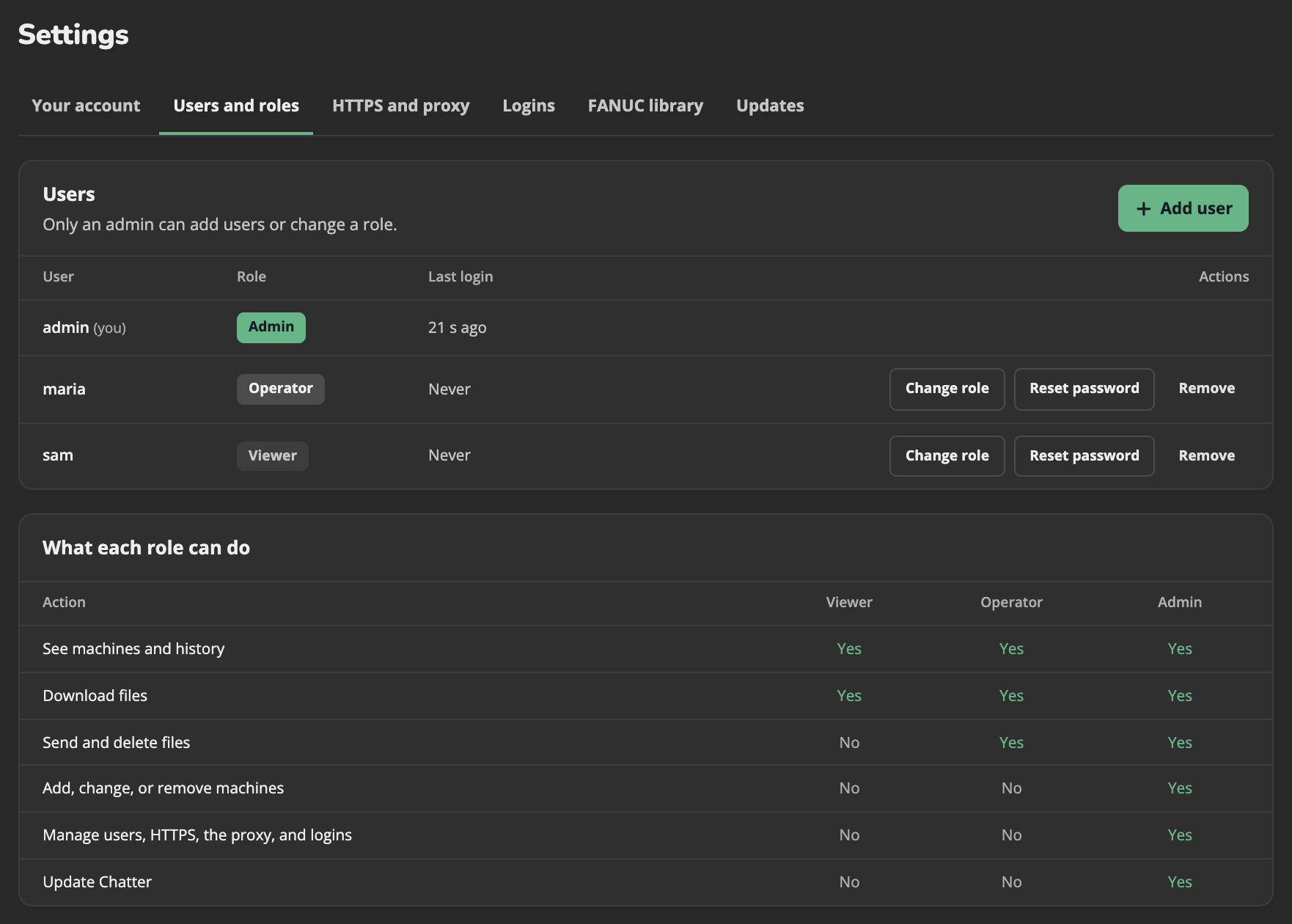
Go to Settings > Users and roles, and click Add user. Give each person a role:
| Role | Can do |
|---|---|
| Viewer | See the machines and their history. Download files. |
| Operator | All that a Viewer can do. Send files to the machines, and delete files on them. |
| Admin | All that an Operator can do. Add, change, and remove machines. Manage the users and the settings. Update Chatter. |
Give the username and the password to the person. They can change the password on Settings > Your account.
Use Chatter only on a shop network that you trust. Do not open it to the internet. See Security.