
Alerts
An alert rule is a check that Chatter does on one machine every 15 seconds, for example "the spindle load is above 90% for 1 minute". When the check stays true for the time in the rule, the alert fires. Chatter shows it in the Alerts panel of the machine page.
Each machine has its own rules. You set them in the Alert rules tab of the machine page.
The starter rules
Each machine starts with 3 rules:
| Rule | Level |
|---|---|
| The machine is not connected for 10 minutes | warning |
| The machine is in alarm for 5 minutes | critical alert |
| The spindle load is above 90% for 1 minute | warning |
You can change, turn off, or remove each of them.
Open the rules
- On the Machines page, click the machine.
- Click the Alert rules tab. The number next to the name is how many rules the machine has.
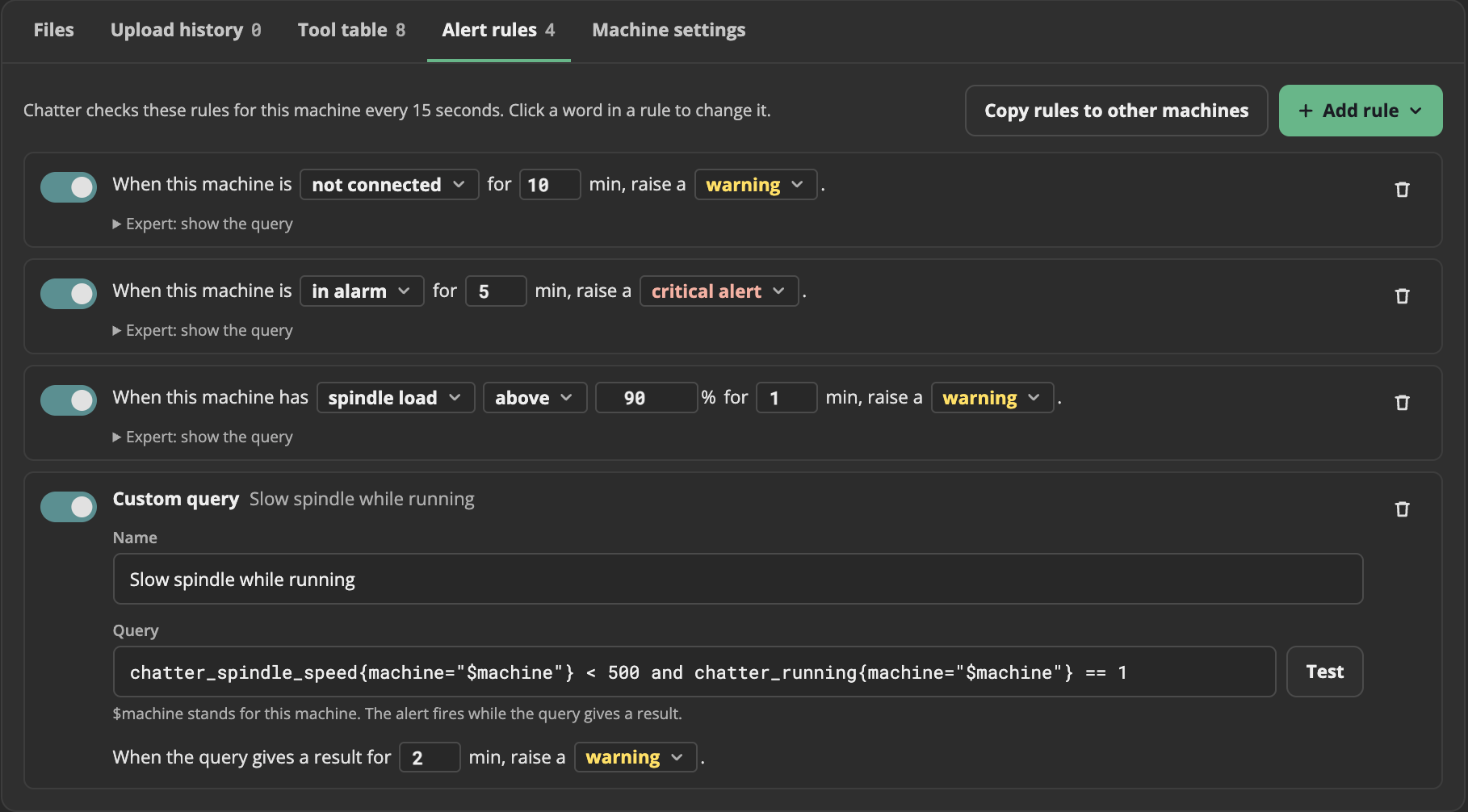
Each user can see the rules. Only an Admin can change them.
Change a rule
Each rule is a sentence. The words with a box around them are the parts that you can change.
- Click a word, such as spindle load or warning, to choose another word.
- Type a new number in a number box, such as the limit or the minutes.
- Click the switch at the start of a rule to turn the rule off or on. A rule that is off stays in the list, but it does not fire.
- Click the trash button at the end of a rule to remove it.
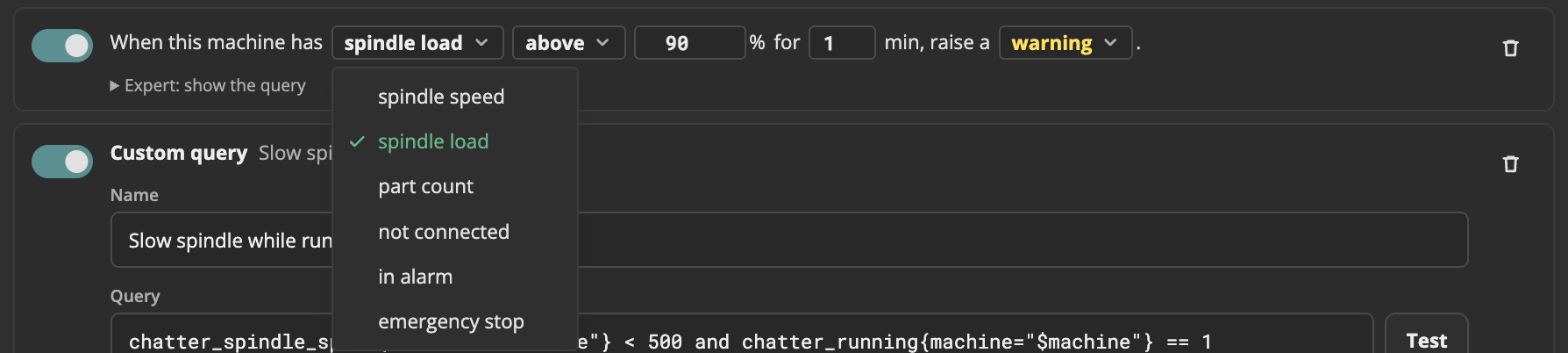
A rule can check these values:
- spindle speed, spindle load and part count: these need a limit, and above or below.
- not connected, in alarm and emergency stop: these are states. They have no limit.
0 minutes means that the alert fires at the first check that is true. The level is warning (a yellow dot) or critical alert (a red dot).
When you change something, a bar shows how many rules changed. Click Save changes to keep the changes, or Undo changes to go back to the saved rules. Chatter uses the new rules within 30 seconds.
Add a rule
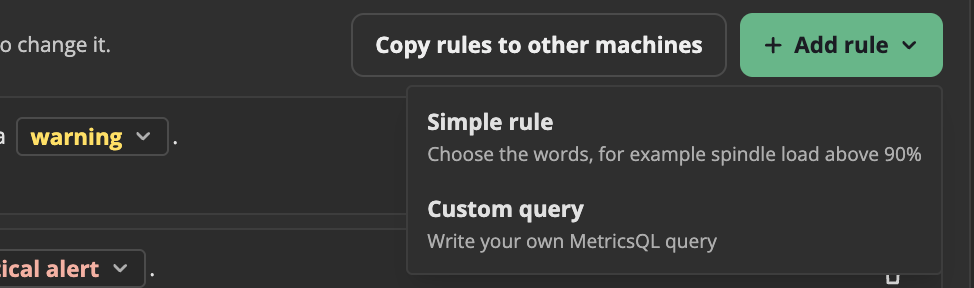
- Click + Add rule.
- Click one of these:
- Simple rule: a new sentence. Change its words like in Change a rule.
- Custom query: a rule with a query that you write. See Custom alert queries.
- Click Save changes.
To see the query that a simple rule uses, click Expert: show the query under the rule. To change that query, click Change to a custom query. The rule then becomes a custom query that does the same check.
Copy rules to other machines
- Click Copy rules to other machines.
- Select the machines that must get the rules.
- Click Copy to N machines.
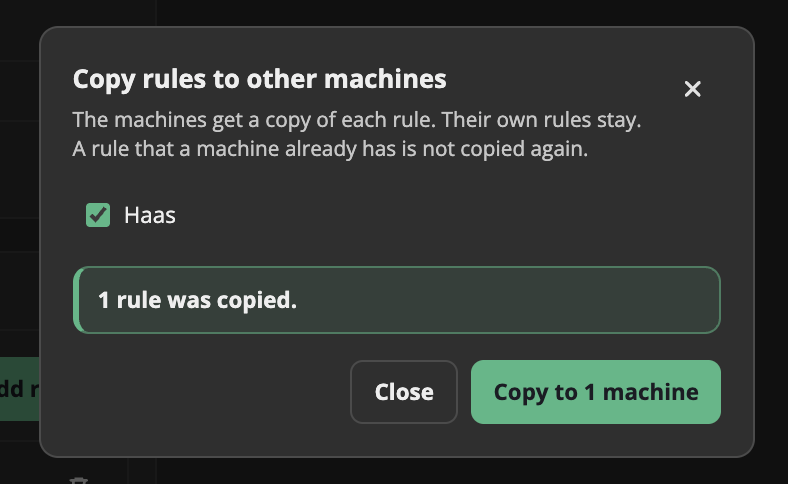
The other machines get a copy of each saved rule. Their own rules stay. A machine that already has the same rule does not get it again. A machine can have at most 50 rules, so a copy stops there. Copy uses the saved rules. If you changed rules, click Save changes first.
What Chatter shows
The Alerts panel shows the alerts of the last 7 days. The alerts that fire now come first, with Firing now.

- The text under the alert name tells the value, for example "Spindle load is 94%".
- A critical alert has a red dot. A warning has a yellow dot.
- When you remove a rule or turn it off, its alert stops.
Chatter keeps each alert for 1 year after it ends, in chatter.db. Chatter does not send an email or a message for an alert yet.
To read the alerts from a program, see GET /api/alerts.
How it works
Chatter keeps the rules in chatter.db, so an update does not change them. After each save, Chatter writes all the rules that are on to a file for vmalert, the program that does the checks. Then Chatter tells vmalert to read the file again. Do not change that file yourself: Chatter writes it again after each save and at each start.